Whenever you’re dealing with data analysis, programming, or even just trying to locate that 4-year-old file hidden deep within your Mac’s folders, there are a LOT times when knowing Linux commands becomes incredibly useful.
Linux commands are instructions you give to the operating system through a special window called the terminal emulator(also called shell, command line, or console). Think of it as directly talking to your computer’s core.
As a Mac user, I usually use Linux commands in my terminal to download programming languages, to launch a local development server for a website, or to connect to a locally stored database. Also, recently, I even used Linux commands to deploy my website through AWS S3. Point is, YOU should also learn some of Linux which will help you in the long run.
Now, here are the 29 commands that are good to know. They’re categorized for easier understanding.
File navigation & basic management
ls (list directory contents)
- Shows what’s inside a directory. You can use this to see the contents of the directory you just entered. If you type
lsin your terminal, you will see all the public files in your computer.

pwd (print working directory)
- Tells exactly where you are in the file system by displaying the full path of your current directory.

mkdir (make new directory)
- Creates a new, empty directory(folder) at a specified location. (look at example below)

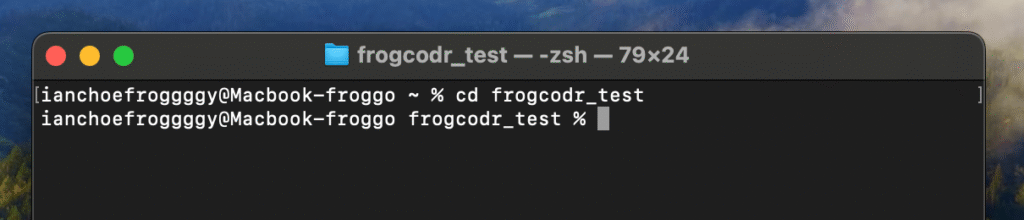
cd (change directory)
- Allows you to mode between different directories(folders) in your file system. Once you create a directory(ex, through the
mkdirexplained above),cdis how you’ll enter it.
touch👅 (create new file or update timestamps)
- Creates a new, empty file at a specified location. If the file already exists, it updates its last modified timestamp. How is it different from
mkdir?mkdirmakes DIRECTORIES(folders) whiletouchcreates FILES.

cp (copy files/directories)
- Duplicates files or directories to a new location. (look at example below)

mv (move or rename files/directories)
- Moves files or directories from one location to another, or renames them. (below is an example of renaming)

rm (remove files/directories)
- Deletes files or directories. USE WITH CAUTION THOUGH, deleted items are NOT sent to a trash bin from the command line. They are PERMANETLY deleted. (frog.txt is gone 😭 look below)

rmdir (remove empty directories)
- Deletes an empty directory. Also use this with caution because this will also permanently delete the selected directory, like the rm command. This won’t delete directories that contain files or other subdirectories though, so it can act as a safety measure.
As seen below, if a directory is not empty, you can’t delete it using the rmdir command.

File viewing & editing
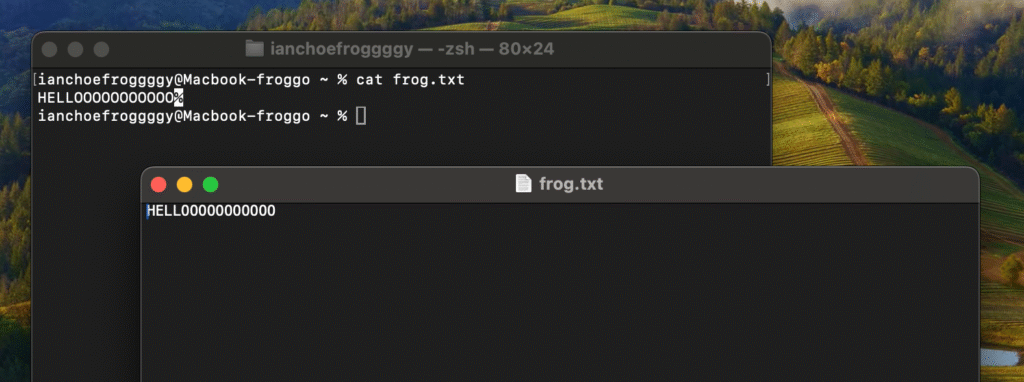
cat (display file contents)
- Displays the entire content of one or more files(best for small files). Short for “concatenate”.
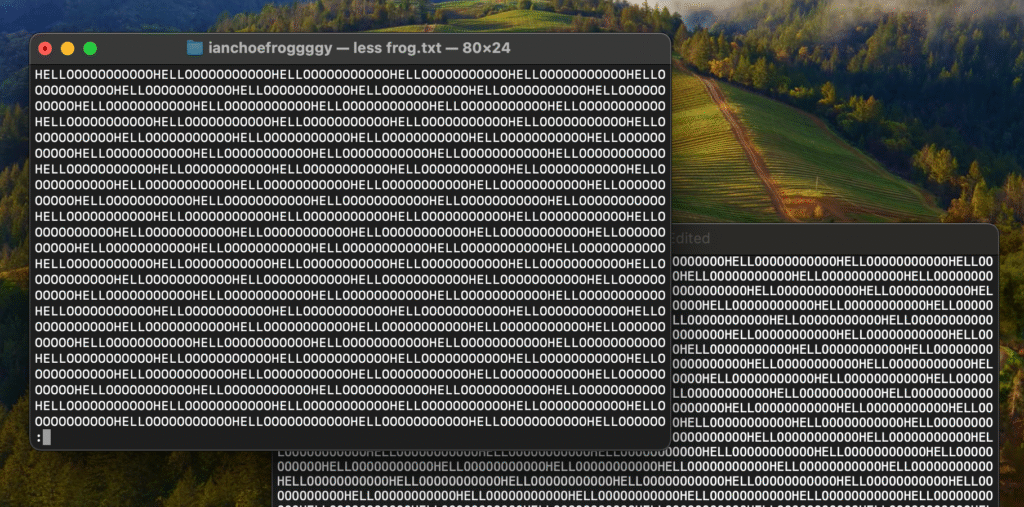
less (view file contents interactively)
- Displays a pager that allows you to view file contents page by page. This is useful for large files, since it doesn’t load the entire file into memory at once.
nano or vi / vim (edit text)
- Lets you edit text files.
nanois simpler and more beginner-friendly for quick edits.vi(vimis its improved version) also does a similar job, but they’re more complicated and powerful.
Below are, step by step, the very basics of how to use nano. (almost all directions are shown, so you can just read along and figure it out.)

If your edits are finalized, press control + X to exit.

Y(yes) to confirm, then just press enter.

File searching
find (search for files)
- Searches for files and directories based on various criteria (name, size, type, etc..) within a specified location.
Below, I am finding a file called nazuna.gif in my animegirls folder that is located in my desktop. Here’s the full command:
find ~/Desktop/animegirls -type f -iname "nazuna*.gif"

locate (quick search using database)
- Searches for files usng a pre-built databse of all files on your system. It’s usually faster than
findbut might now show the very latest files until its database is updated.
Below, I tried searching for the same file now using locate, but it says that the file is not in the pre-built database.

Try updating the DB yourself, and if it still doesn’t work, just use find for convenience. Both commands achieve similar stuff, but locate is just a bit faster.
grep (search text in files)
- Searches for specific text in files. Think of it as a command + F for terminal.

System information
uname (system information)
- Prints basic system information, such as the name, version, and more.
Apparently the kernel name of macOS is darwin lol. If you want more info, type uname -a.

ps (list processes)
- Displays information about currently running processes.

df (disk space usage)
- Displays the amount of disk space used and available on your file systems. But, I’d rather go into system preferences to manage storage. Use this if you want to look like a hacker in front of your friends 😂

du (directory/file size)
- Displays the estimated file space usage for a given file or directory.

top / htop (monitor processes)
- Provides a real-time live view of running processes, CPU usage, memory usage, and more.
htopis generally more user friendly, but if you’re on mac, usetopsince you have to download third-party tools to really makehtopwork.

File permissions / ownership
chmod (change file permission)
- Changes the read, write, and execute permissions of files or directories.
This command is kind of complicated to use, so there needs to be more explaining to do.
Permission values:
- Read (r) = 4
- Write (w) = 2
- Execute (x) = 1
Translates to:

Example:
chmod 755 [file.name]What does 755 mean?
7 (Owner) = rwx → Read, Write, Execute
5 (Group) = r-x → Read, Execute
5 (Others) = r-x → Read, Execute
chown (change file ownership)
- Changes the ownership of a file or directory.
chown frog [file.name]          # Change owner to 'frog'
chown frog:toad [file.name]     # Owner = 'frog', Group = 'toad'
Networking
ping (check network connectivity)
- Tests the connection to a website and shows if it’s reachable and how quickly it responds.

curl (download files)
- Downloads files or interacts with data from a website directly in your terminal. Fetches web content, in short.

netstat / ss (network statistics)
- Displays active network connections, open ports, etc. Use
netstatif you’re on mac.

General utilities
clear (clear terminal screen)
- Probably the command I used the MOST while making this post. This will erase all the ugly stuff if you just type
clearin your terminal.

history (view command history)
- Displays a list of recently executed commands. (you can also just press the ↑ button and it’ll display the previous command you typed in.)

echo (print text or variables)
- Displays a line of text or the value of variables to the terminal. If you see
dquote>, just type"to indicate that you are closing the shell.

sudo (run commands as superuser)
- Short for “superuser do.” This just allows you to make commands with *elevated* privileges as the “root” user, usually used when making system-wide changes or installations.
“with great power comes great responsibility”

+ Fun commands
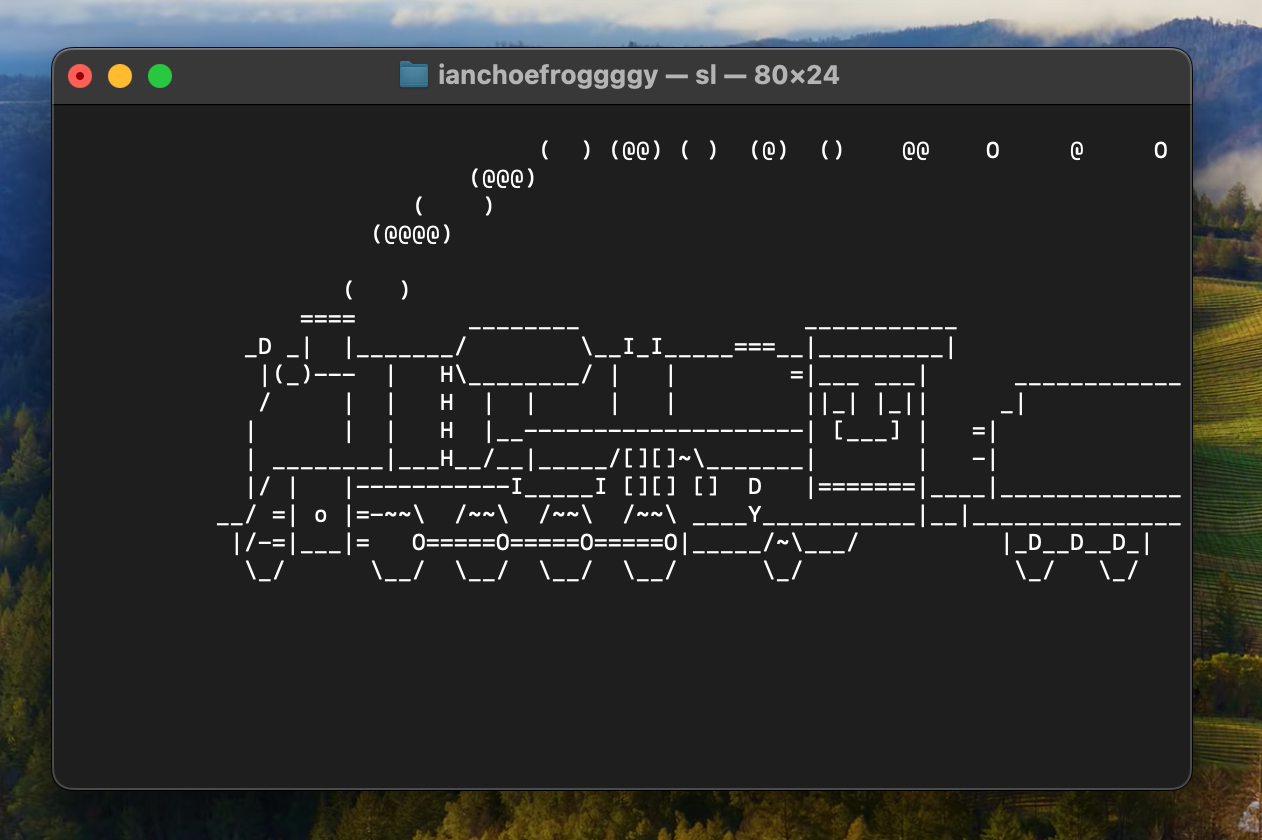
sl command
If you’re on mac, first install the sl command:
brew install sl
then, type sl.
You’ll get a moving train :0
fortune command
If you’re on mac, first install the fortune command:
brew install fortune
then, type fortune
You’ll get a random quote, funny message, or a fortune message 😳

cowsay command
If you’re on mac, first install the cowsay command:
brew install cowsay
then, type cowsay [the stuff you want the cow to say]
You’ll get a cow saying the statement you asked it to say 🐄

now try typing fortune | cowsay
you’ll get either a very wise or dumb cow 🤣

cmatrix command
If you’re on mac, first install the cmatrix command:
brew install cmatrix
then, type cmatrix
You’ll get falling green characters from the Matrix movie 💊

+ Xtra
One thing I learnt from writing this post, apparently you can make new terminal windows with profiles(color schemes).

pretty cool :3
personal favorite is homebrew cause it makes you look like a hacker (look below)

Leave a Reply